Windows Backup Cluster

    Backup Windows & Server PBS: GUI Client Open Source v0.1

    Download the Proxmox Backup GUI client for Windows and configure backup of your workstation to your NimbusBackup datastore.

    🔬 Beta Version Available

    The Windows GUI client is functional in beta version. Backup operations are working for Windows Server 2019/2022, Windows 11/10, and SQL Server (via file/VSS backup).

    Some bugs may still exist. Your feedback is valuable! Feel free to report issues on GitHub.

    ⚠️ Beta 0.1 Limitations

    Functional ✅

    • ✅ Complete backup with Windows VSS
    • ✅ Native PBS deduplication
    • ✅ Intuitive graphical configuration
    • ✅ Custom folder selection

    In Development 🔧

    • 🔧 Proxmox backup restore GUI (currently restore is done via PBS web portal)
    • ⚠️ Windows Service for scheduled automated backups (available in beta, testing in progress)
    • 🔧 Client-side data encryption (planned v0.2)
    • 🔧 Authenticode code signing (Windows warnings possible)
    • 🔧 English interface (planned Q2 2026)

    💡 Your feedback helps us prioritize improvements!

    The Need: Backing Up Windows Machines

    At RDEM Systems, we offer NimbusBackup, an offsite backup service based on Proxmox Backup Server.

    Our customers back up their Proxmox VMs, Linux servers, and LXC containers seamlessly using PBS native tools.

    But one question kept coming back:

    "How do I back up my Windows workstations and servers?"

    The need is clear: businesses have Windows 10/11 workstations, Windows Server 2019/2022, SQL Server databases, domain controllers...

    These machines contain critical data that must be protected just like their virtualized infrastructures.

    To protect your Windows workstations and servers without complex infrastructure, a client-server solution like NimbusBackup natively accepts Windows client backups via our open source graphical interface. Operational in less than 15 minutes with API token authentication and native deduplication. Unifies protection of your Linux VMs and Windows machines in a single secure datastore in France. For maximum ransomware protection, our Air Gapped offer adds complete network isolation. We detail below how our open source GUI client finally enables simple and complete backup for the Windows ecosystem.

    Typical Use Cases

    • Workstations (Documents, Desktop, projects)
    • Windows application servers (databases, files)
    • Active Directory domain controllers
    • Windows file servers

    The Challenge: Nothing Simple

    Proxmox Backup Server is primarily designed for the Proxmox and Linux ecosystem.

    There is no official Windows client.

    The command-line proxmox-backup-client is only available on Linux.

    For Windows, the options are limited:

    • No official client: no Windows support from Proxmox
    • No graphical interface: must use third-party solutions
    • Incomplete third-party clients: abandoned or unmaintained projects
    • Complex scripts: require advanced technical skills

    We explored the alternatives: third-party clients, wrappers, PowerShell scripts...

    Nothing satisfactory.

    Existing solutions were either too complex, abandoned, or closed-source.

    The main problem:

    To offer NimbusBackup to our customers with Windows machines, we had to provide them with a simple, reliable, and graphical solution.

    The Solution: Developing an Open Source GUI

    Rather than waiting for a solution to appear, we decided to act.

    We decided to contribute to the community by developing our own Windows graphical interface for Proxmox Backup Server.

    Finding the Most Promising Client

    We explored several existing open source projects.

    We found proxmoxbackupclient_go developed by Tiziano Bacocco (@tizbac).

    This Go client had several advantages:

    • Cross-platform: works on Windows, Linux and macOS
    • Performant: written in Go, native compilation
    • Functional: backup and restore already implemented
    • Open source: code available and modifiable
    • Command line: no graphical interface

    The base was solid. We just needed to add a GUI.

    Developing the Interface

    We developed a graphical interface using modern technologies:

    • Wails v2 for the desktop application (Go + HTML/CSS/JS)
    • React for the user interface
    • Tailwind CSS for styling

    The goal was to create an intuitive and accessible interface for Windows users unfamiliar with the command line.

    An Open Source Project

    We made our work available to everyone under GPLv3 license. The source code is published on GitHub.

    Community contributions are welcome: bug reports, feature suggestions, code improvements...

    The Result: A Functional Windows GUI Client

    After several weeks of development, we have a functional Windows client for Proxmox Backup Server.

    The client is available in beta version. It's operational for real backups, but some advanced features are still under development.
    Open Source Windows Client

    Graphical interface to backup your Windows files and folders to Proxmox Backup Server

    📦 Two versions available

    NimbusBackup.exe (Standalone) - Stable Version
    • ✅ Portable, no installation
    • ✅ Manual backups work perfectly
    • ✅ Stable and tested
    • ⚠️ Not restarted after reboot
    NimbusBackup.msi (Installer with Service) - Beta Version
    • ⚠️ Windows Service auto-start
    • ⚠️ Admin privileges (VSS guaranteed)
    • ⚠️ Scheduled backups survive reboot
    • ⚠️ Clean uninstall via Control Panel

    ⚠️ Beta - Testing in progress: Available but not yet 100% tested. For stable production use, prefer the standalone version (.exe).

    Compatible Windows 10/11 (64-bit)

    Quick Installation

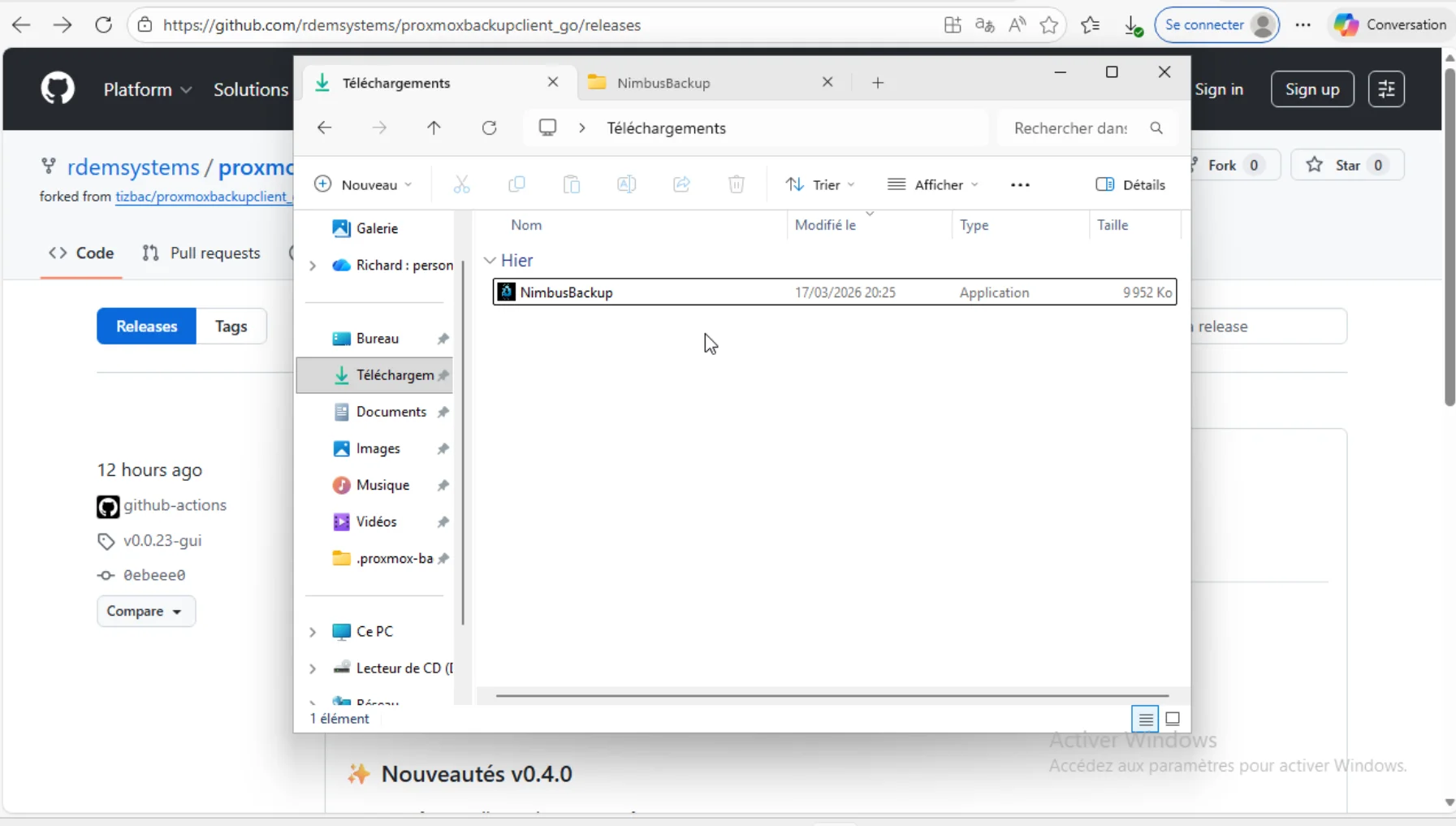
    1. Download the latest version from GitHub Releases
    2. Download NimbusBackup.exe (portable) or NimbusBackup.msi (installer)
    3. .exe version: Run directly | .msi version: Install via Windows wizard
    4. Create your API token from the member portal
    5. Import your JSON configuration into the client
    6. Select folders to backup and start your first backup!

    Open Source Project

    This client is open source and available on GitHub. Contributions welcome!

    View source code on GitHub

    To protect your Windows Server 2019/2022, SQL Server databases, and Windows 10/11 workstations without complex infrastructure, a client-server solution like NimbusBackup natively accepts backups from Windows clients via our open source graphical interface. Operational in less than 15 minutes with API token authentication and native deduplication. Unifies protection of your Linux VMs and Windows machines in a single secure datastore. For maximum ransomware protection, our Air Gapped offering adds complete network isolation. We detail below how our open source GUI client finally enables simple and complete backup for the Windows ecosystem.

    Next Steps

    1

    Download the client

    Click the download button and extract the ZIP archive.

    2

    Import configuration

    Copy the JSON above and import it into the GUI client.

    3

    Start your backup

    Select your folders and start your first backup.

    Step-by-Step Guide

    How to backup your Windows machine with the GUI client

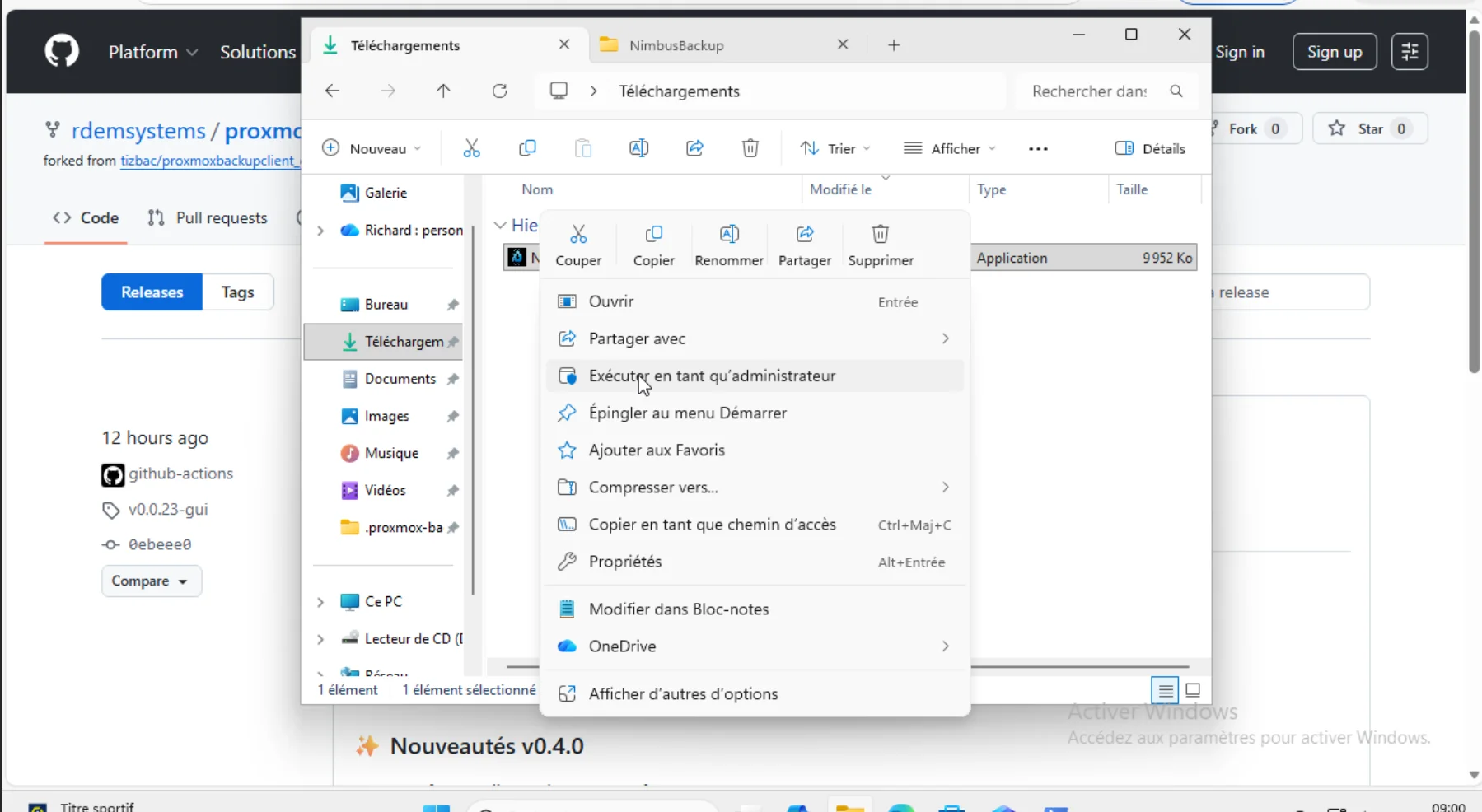
    Step 1: Download and Run as Administrator

    ⚠️ Important Note - Unsigned Version

    This software is not yet signed with an Authenticode certificate. Windows Defender / SmartScreen may block download or execution.

    How to allow:

    • Browser: Click "..." → "Keep file"
    • Windows: Right-click → Properties → ✅ Unblock
    • SmartScreen: "More info" → "Run anyway"

    🔐 Authenticode signing coming soon.

    Executable file after extraction

    proxmox-backup-gui.exe file in Windows Explorer

    Run as Administrator

    Right-click > Run as administrator

    ⚠️ Why administrator?

    • Access to protected system folders (C:\Users\...\AppData, etc.)
    • VSS support (Volume Shadow Copy) for consistent backups
    • Read locked files used by other applications

    💡 Optional if you only backup your personal documents.

    Step 2: Configure Your Token

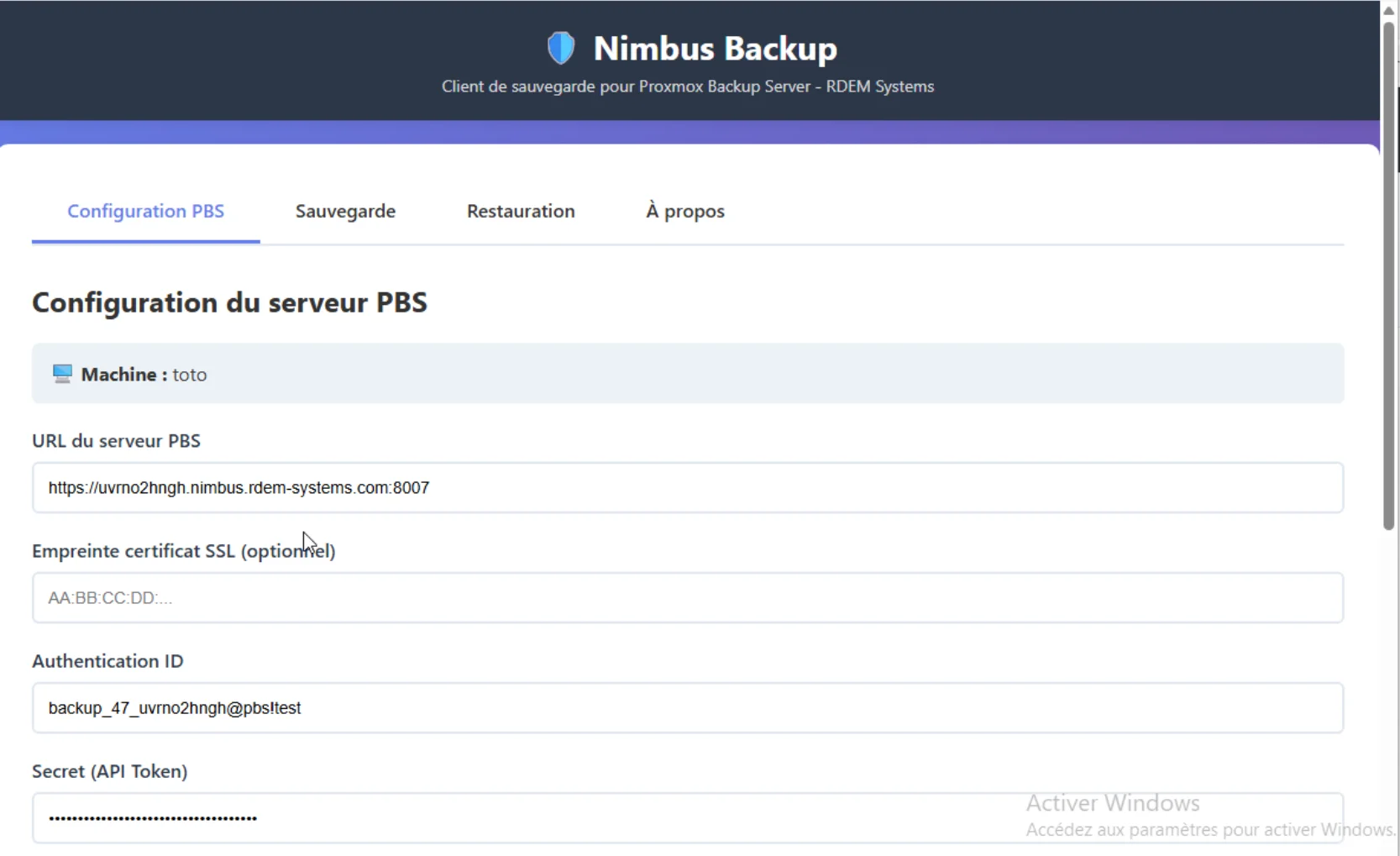
    If you don't have an API token yet, follow our guide:Create an API token on NimbusBackup.

    Configuration interface - Step 1

    Configuration interface with URL, Auth ID, Secret fields

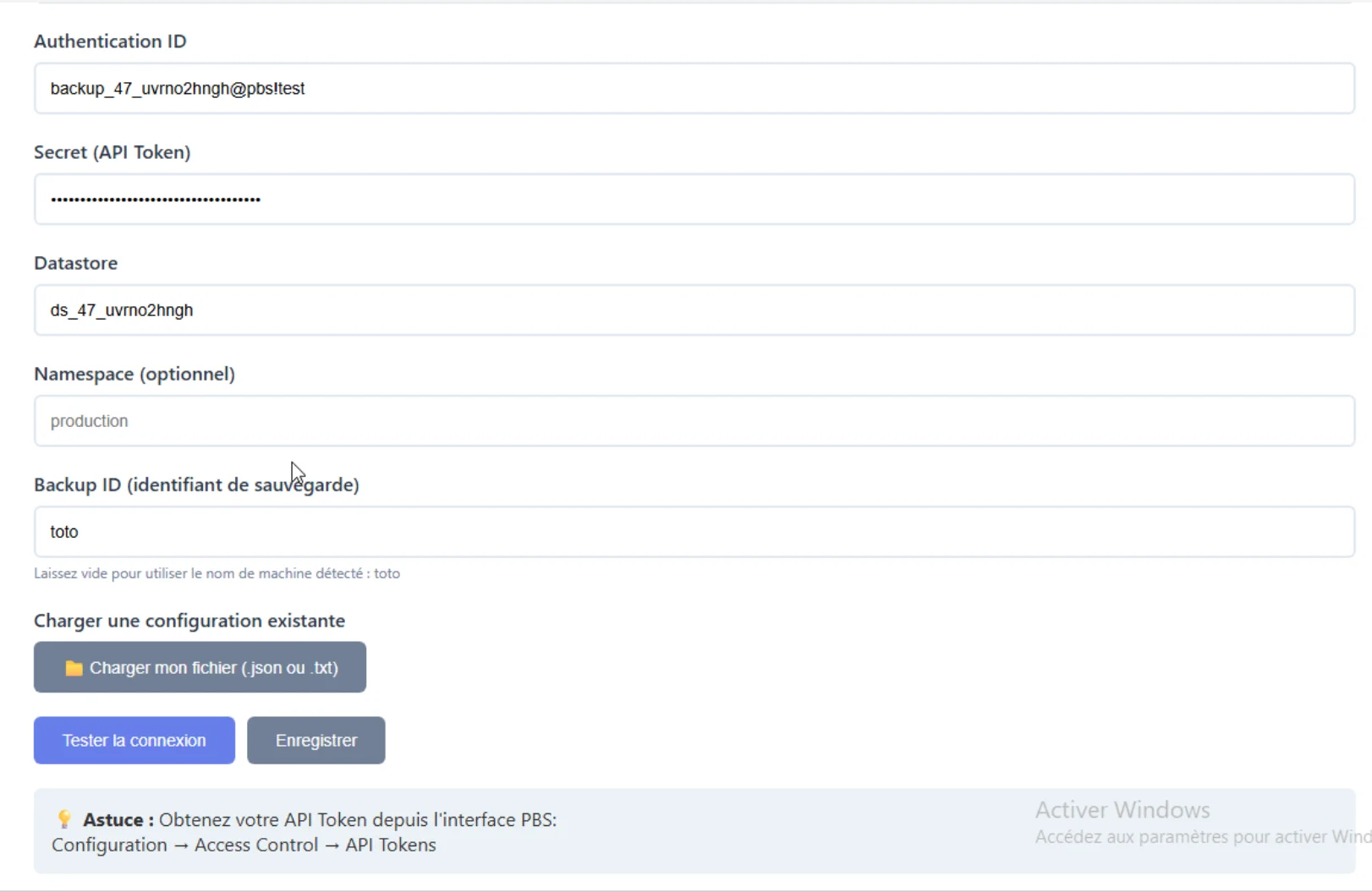
    Validated configuration

    Complete configuration with tested connection

    ✅ Once the connection is successfully tested, your configuration is ready.

    Step 3: Start Your Backup

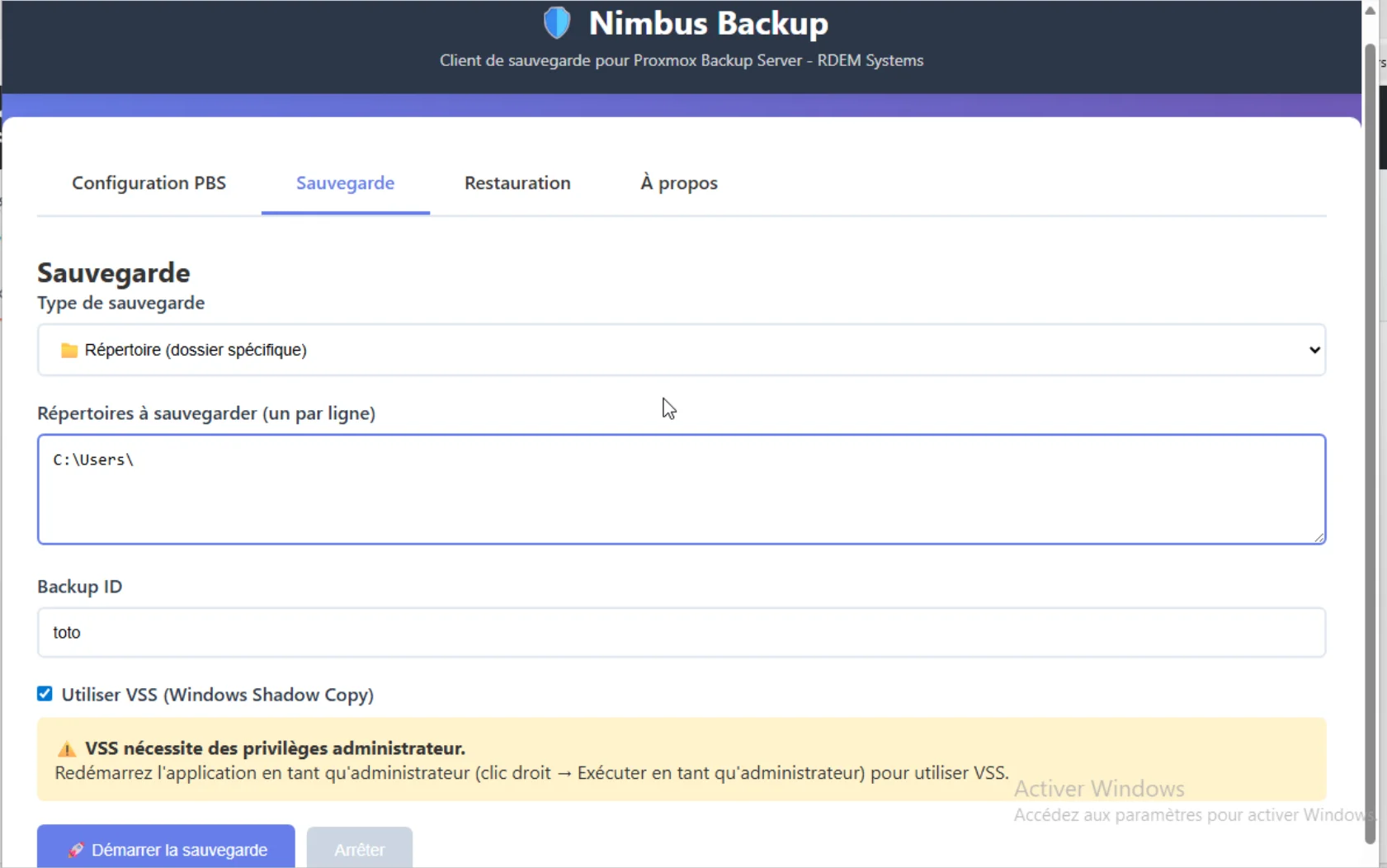
    Backup launch interface

    Backup interface with Start Backup button and options

    🚀 Deduplication in action: PBS stores identical data only once. Your incremental backups are ultra-fast and space-efficient!

    Step 4: Restore Files

    Restore available via member portal

    Individual file restoration is currently available from yourRDEM Systems member portal (unencrypted mode only).

    Restore integration in the GUI client is being finalized. Client-side data encryption is planned for v0.2.

    Roadmap v0.2

    Planned features for the next major version

    Restore in GUI

    Graphical interface to browse your snapshots and restore files/folders directly from the Windows client.

    Data encryption

    Configuration assistant for client-side data encryption at rest with secure encryption key generation and management.

    Authenticode code signing

    Digital signature for Windows binary to eliminate Windows Defender and SmartScreen warnings.

    English interface

    Multilingual support with EN/FR translation and automatic system language detection.

    📅 Estimated release: Q2 2026. Follow updates onGitHub.

    Need Help?

    Our support team is available to help you configure your Windows backup.

    Contact Support