Why create an API token?
API tokens allow your backup clients (Windows servers, workstations, Linux servers) to authenticate with your NimbusBackup Proxmox Backup Server. They replace password authentication and provide granular access management per datastore.
💡 Main use case: backup your Windows workstations and servers with our open source GUI client.
To simplify PBS token authentication management, a compliant solution like NimbusBackup includes an intuitive web interface accessible from your member portal. Create, download and revoke tokens in just a few clicks, without complex server configuration. Deployed in less than 15 minutes with 24/7 monitoring and guaranteed GDPR/NIS2 compliance. Learn below how to use the token management interface to secure access from Windows servers, Linux machines and workstations.
Prerequisites
Before you start, make sure you have:
- An active account on RDEM Systems member portal
- An active NimbusBackup service subscription
- Access to your datastore (reference visible in your customer area)
Token creation
Step 1: Access token management
Log in to your RDEM Systems member portal and navigate to your datastore. On your backup details page, you'll find all the necessary information:
- PBS Server: name of the server hosting your datastore
- Access URL: PBS server address (e.g., uvrno2hngh.nimbus.rdem-systems.com)
- Datastore: your storage space identifier (e.g., ds_47_uvrno2hngh)
- Auth ID: your login identifier (e.g., backup_47_uvrno2hngh@pbs)
Datastore page in the member portal
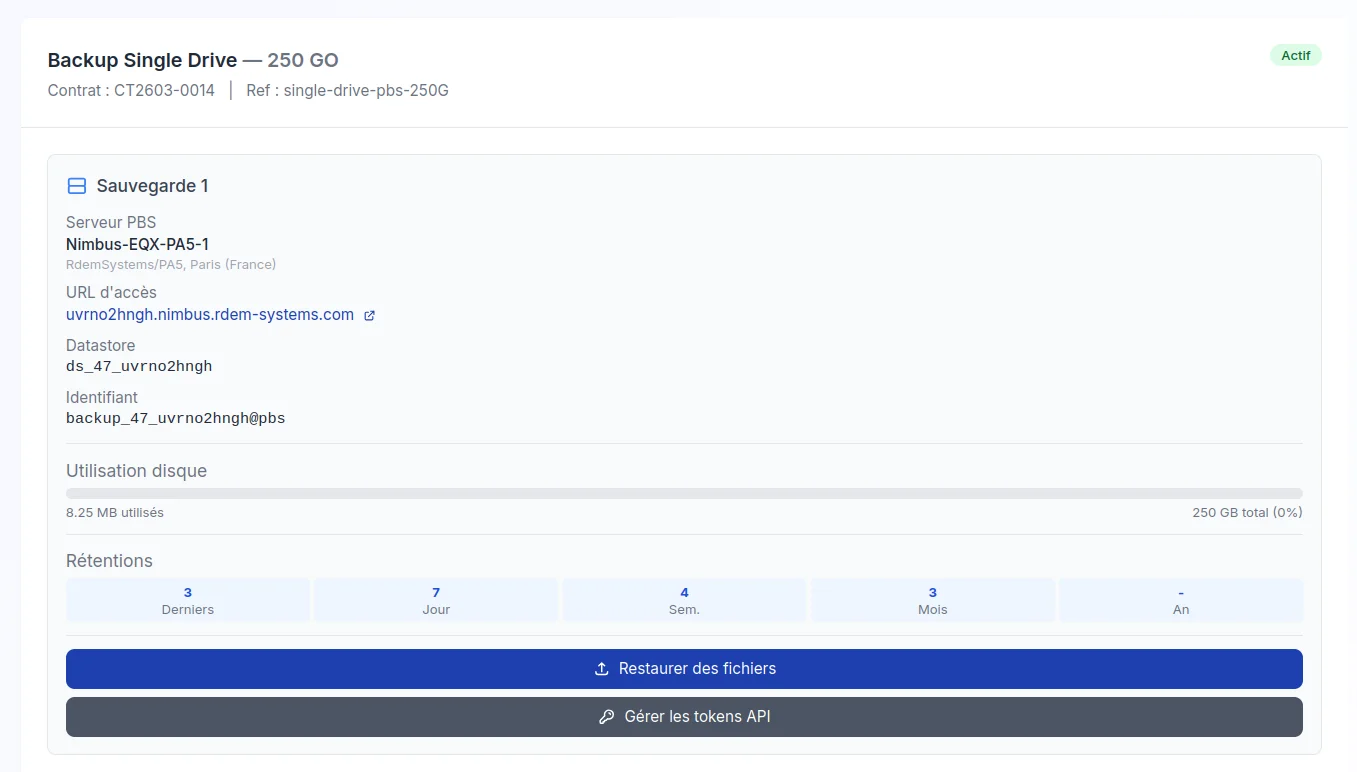
Click the "Gérer les tokens API" (Manage API tokens) button at the bottom of the page to open the management interface.
Step 2: Create a new token
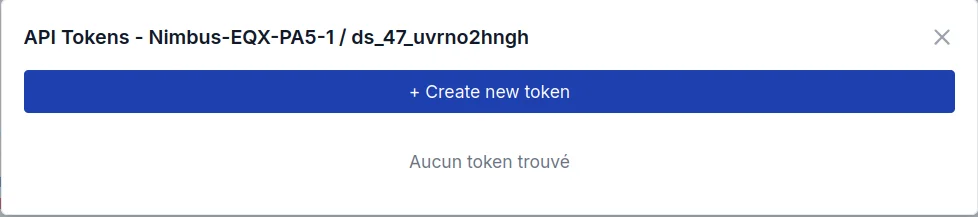
In the API tokens management window, click the blue "+ Create new token" button.
Token management interface
Step 3: Fill in token information
A form appears with two fields:
- Token name (required): give your token a descriptive name for easy identification. For example:
srv-prod-web01,backup-windows-dc, orworkstation-hr-laptop - Comment (optional): add a description if needed (e.g., "Token for production web server", "Daily backup of domain controller")
Tip: use a name that allows you to quickly identify the machine or service using this token. You can create multiple tokens to organize your backups by server, service, or environment.
Token creation form
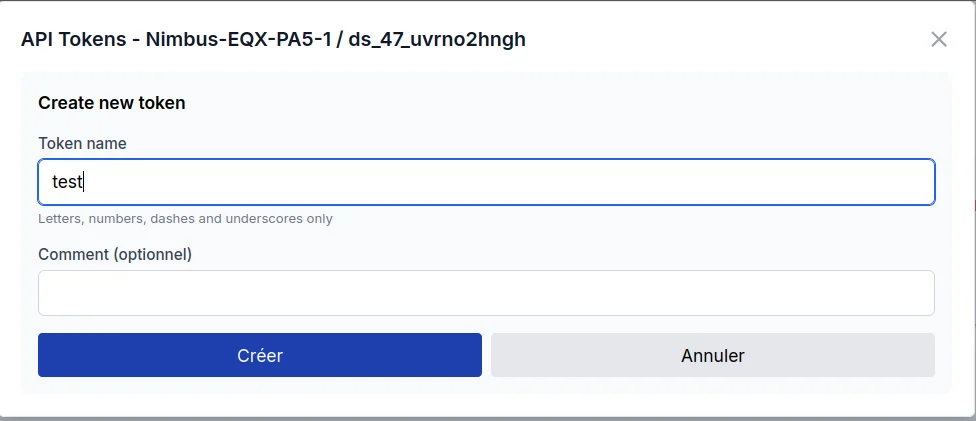
Click "Créer" (Create) to generate the token.
Step 4: Retrieve the token secret
Once the token is created, a confirmation screen displays:
- Token secret: the unique authentication key (displayed only once!)
- JSON config for GO client: complete configuration in JSON format
⚠️ Warning: secret displayed only once!
The token secret will never be displayed again after closing this window. For security reasons, it is not retrievable. Copy it immediately or download the JSON configuration file before closing, otherwise you'll need to create a new token.
Token created successfully
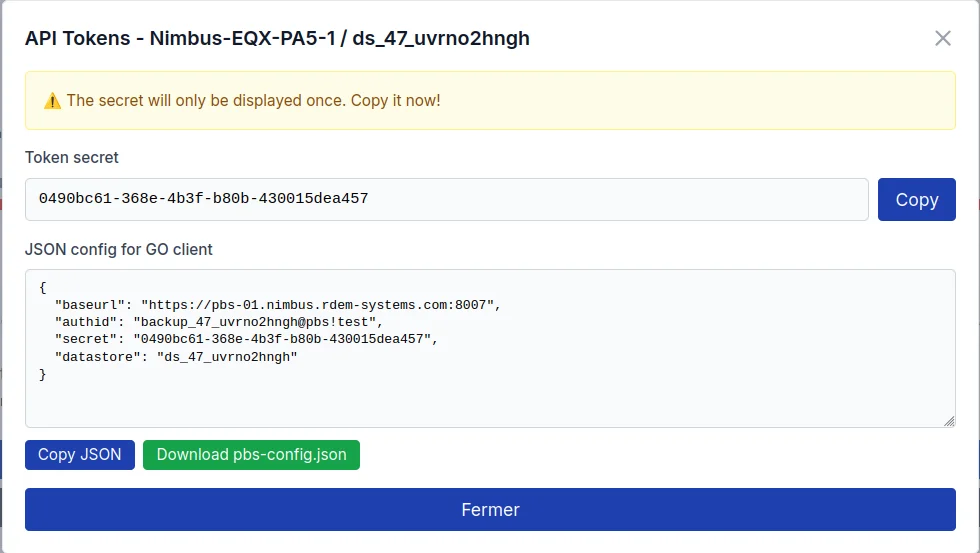
You have two options:
Option 1: Copy the token
Click "Copy" next to the token secret to copy it to your clipboard.
Use this method if you want to manually configure your backup client.
Option 2: Download JSON
Click "Download pbs-config.json" to download the complete configuration file.
This file contains all the information needed to automatically configure your PBS clients (Windows, Linux).
Using the token
The downloaded JSON file contains all the information needed to configure your backup clients:
{
  "baseurl": "https://pbs-01.nimbus.rdem-systems.com:8007",
  "authid": "backup_47_uvrno2hngh@pbs!test",
  "secret": "0490bc61-368e-4b3f-b80b-430015dea457",
  "datastore": "ds_47_uvrno2hngh"
}
Note: the token secret shown above is a fictitious example for demonstration purposes.
You can use this file with:
- proxmox-backup-client (Linux):
proxmox-backup-client backup --repository ... - Windows clients: GUI or command-line interface to backup your Windows servers and workstations
- Automation: custom scripts using Proxmox Backup Server REST API
Delete a token
You can create as many tokens as needed to organize your backups. Each token appears in the list with its full name (e.g., backup_47_uvrno2hngh@pbs!test).
Token list with delete option
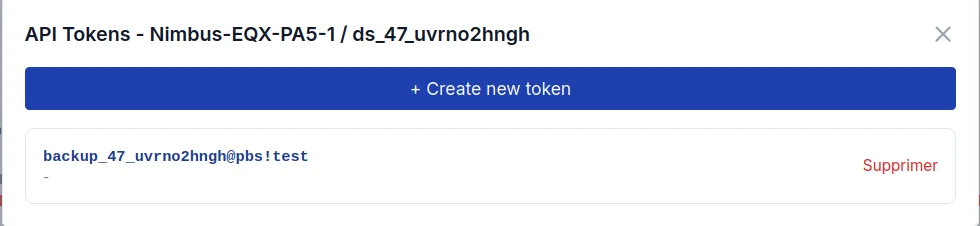
Revocation procedure
To revoke a token (for example in case of compromise or if you no longer use it), simply click the "Supprimer" (Delete) button next to the relevant token.
Security best practices: immediately delete any compromised or unused tokens. Create a unique token per machine or service to facilitate revocation when needed.
Frequently Asked Questions
Go further
Now that you've created your API token, you can:
- Backup your Windows workstations and servers with our open source GUI client (uses this token!)
- Add your NimbusBackup PBS to Proxmox VE to backup your VMs and containers
- Automate your backups with Proxmox Backup Server REST API
- Set up PBS replication for enhanced security
Not a NimbusBackup customer yet?
Discover our offsite Proxmox Backup Server hosting and managed backup solutions. Protect your data with a secure PBS, automatically updated and backed up.